There are two buttons in the upper right corner:
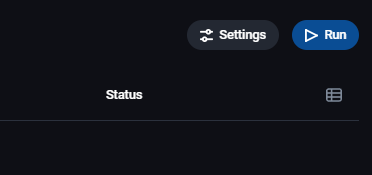
- Settings - here you can tweak scanner settings and set up automatic scanning
- Run - here you can run a scan manually
Settings
This page has two tabs:
- Common - scanner settings
- Autorun - automatic scanner
Common
You will see basic settings in this tab:
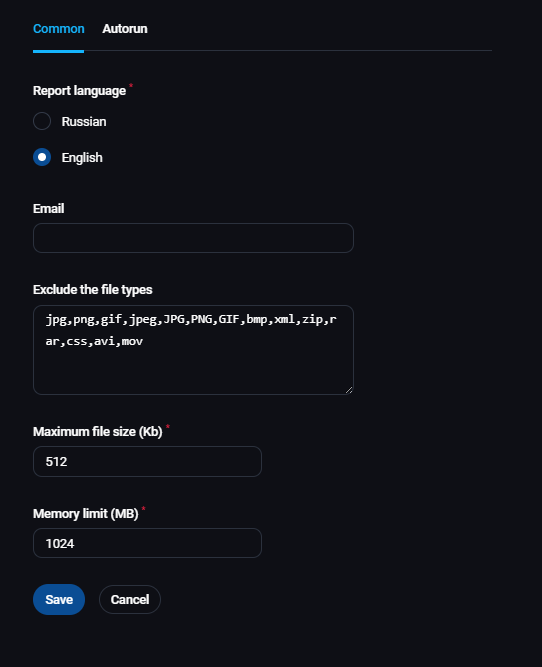
- Report language - choose between English and Russian language for reports
- Email - enter an email address if you want to receive the report via email
- Exclude the file types - file types here will not be scanned
- Maximum file size (Kb) - set maximum file size to be scanned (in Kb)
- Memory limit (MB) - set the maximum RAM a scanner can use
Autorun
In this tab, you can set up the automatic scanner:
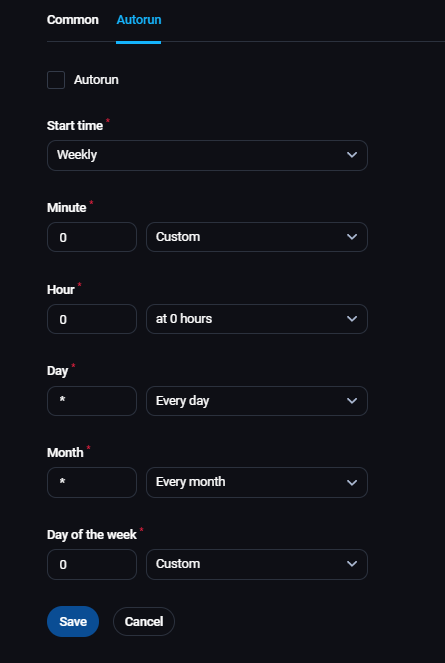
- Autorun - a checkbox to enable the automatic scanner
- Start time - set the start time for the scanner
- Annually
- Monthly
- Weekly
- Daily
- Custom
- Minute - set the start time for the scanner by minutes
- Custom
- Every minute
- Every 5 minutes
- Every 10 minutes
- Every 15 minutes
- Every 30 minutes
- Hour - set the start time for the scanner by hours
- Custom
- Every hour
- Every 2 hours
- Every 6 hours
- Every 12 hours
- At 0 hours
- At 12:00
- At 21 o'clock
- Day - set the start time for the scanner by day
- Custom
- Every day
- Every 2 days
- Month - set the start time for the scanner by months
- Custom
- Every month
- In March
- In June
- In September
- In December
- Day of the week - set the start time for the scanner by days of the week
- Custom
- Every day
- Every Monday
- Every Tuesday
- Every Wednesday
- Every Thursday
- Every Friday
- Every Saturday
- Every Sunday
Run
After you click on the button Run, you will be able to choose between 3 types of scans:
- Express mode - meant for quick scans
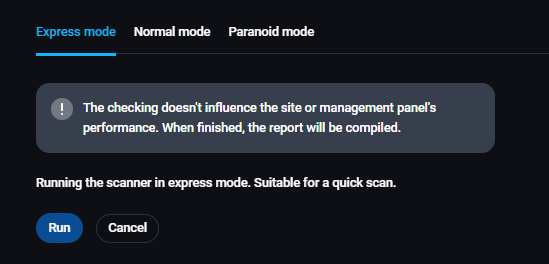
- Normal mode - meant for routine scans
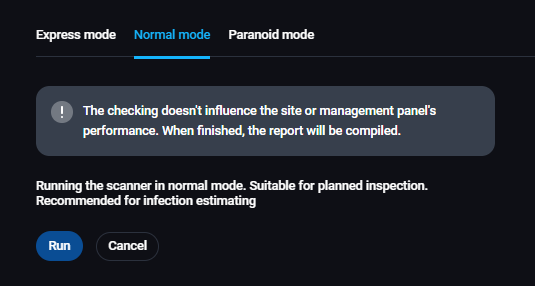
- Paranoid mode - meant for full scans
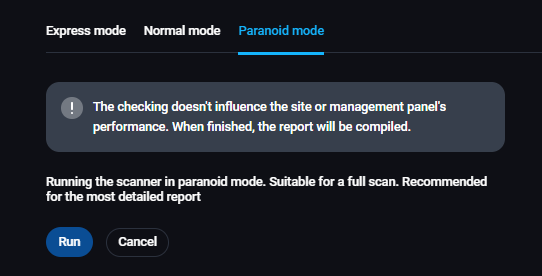
After you start the scanner, you will be returned to the previous page, where you can track the status of the scan:

After the scan is done, you will be able to use 2 icons on the right:
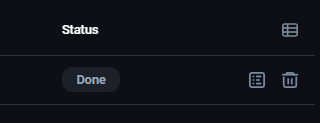
- Notes - opens up a report
- Kanta za smeće - deletes the scan from the history